How MultiShop POS Works: A Complete Guide to the Shop & Administration Portals
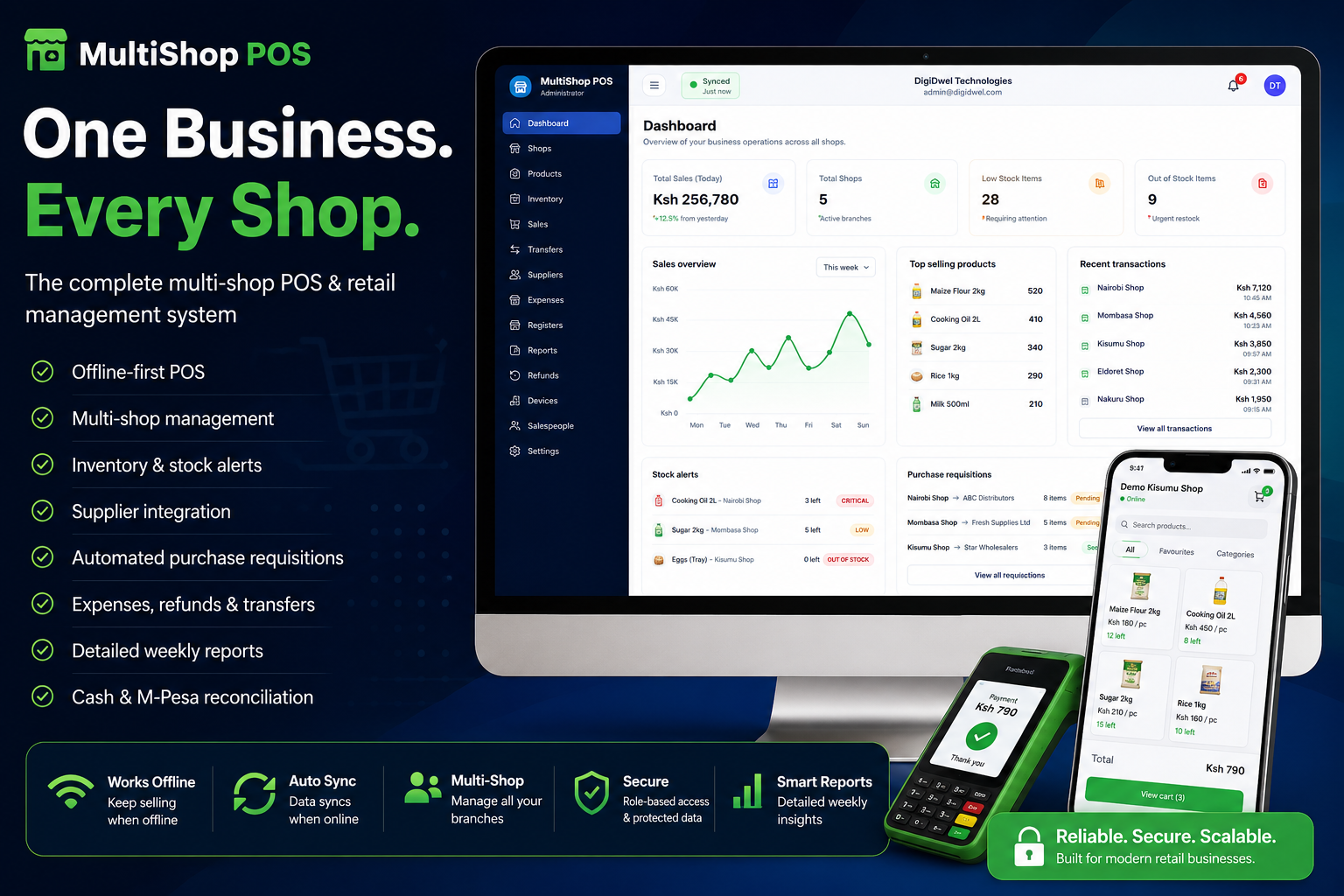
MultiShop POS is designed to connect day-to-day shop operations with centralized business management. The system is divided into two primary environments: the Shop Portal, where employees handle daily operations, and the Administration Portal, where business owners and administrators manage the entire organization.
This guide explains how the system works, starting with the Shop Portal and later covering the Administration Portal.
PART ONE: SHOP PORTAL
The Shop Portal is the operational side of MultiShop POS. It is where cashiers and authorized shop employees process sales, manage registers, monitor stock, handle expenses, request refunds, manage transfers, and perform other daily activities.
Each shop operates within its own environment, meaning users primarily see the products, transactions, inventory and activities associated with their assigned shop.
1. Shop Dashboard
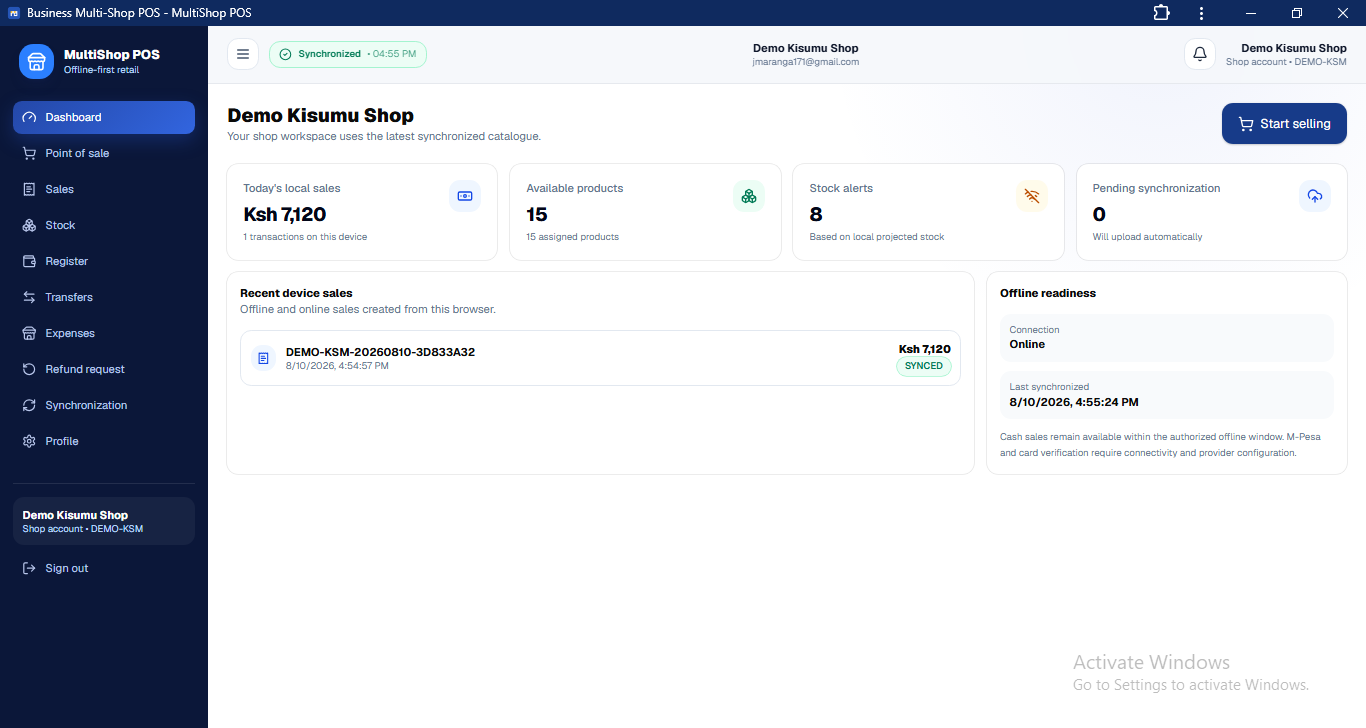
The Shop Dashboard provides an overview of what is happening within the shop.
Instead of navigating through individual pages to understand the shop's current situation, users can see important information from one place.
The dashboard can provide visibility into areas such as:
Today's sales
Current stock status
Register status
Recent transactions
Expenses
Pending activities
Synchronization status
Important notifications
The dashboard acts as the starting point for the shop employee's daily operations.
2. Point of Sale
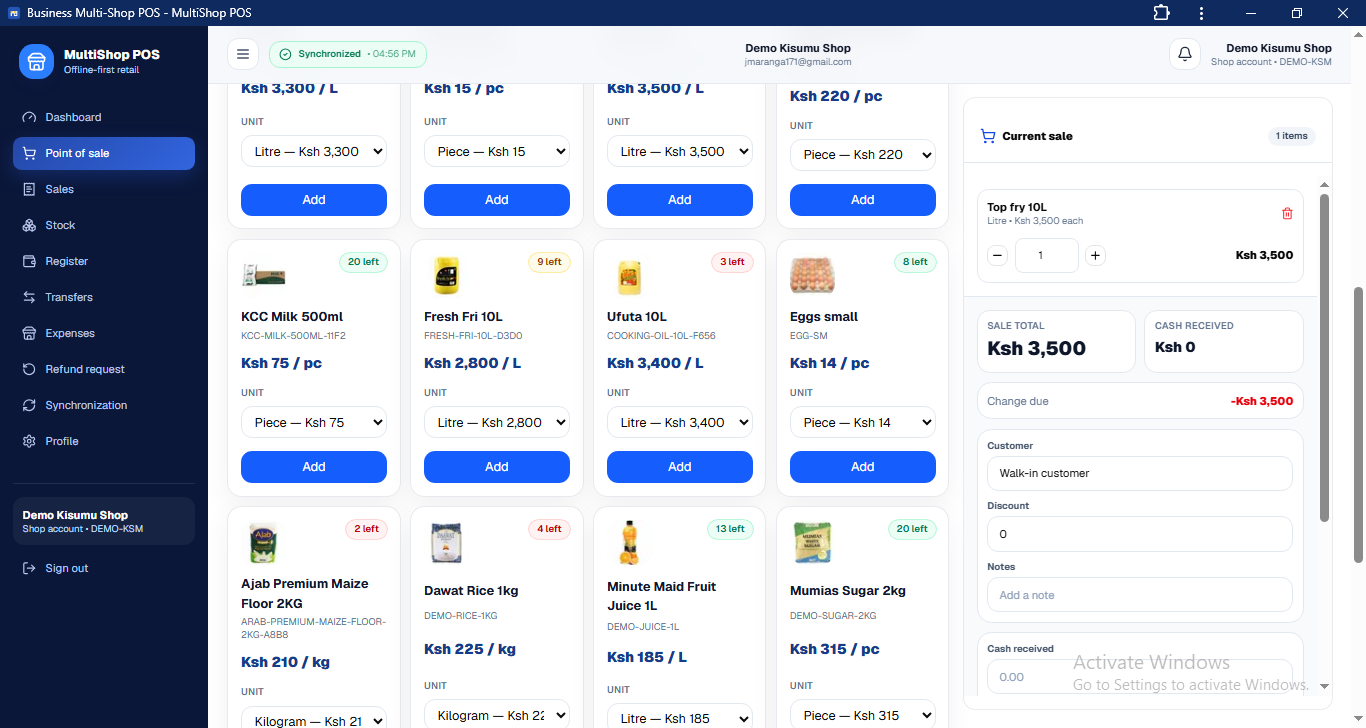
The Point of Sale is where customers' purchases are processed.
A cashier can search for products, add them to the cart, adjust quantities and review the total before completing the transaction.
The POS is designed to make the checkout process quick while ensuring that every transaction is recorded correctly.
Typical sales flow
Select products → Review cart → Select payment method → Confirm payment → Complete sale → Generate receipt
Once a sale is completed, the system updates the relevant records and inventory.
3. M-Pesa Payments
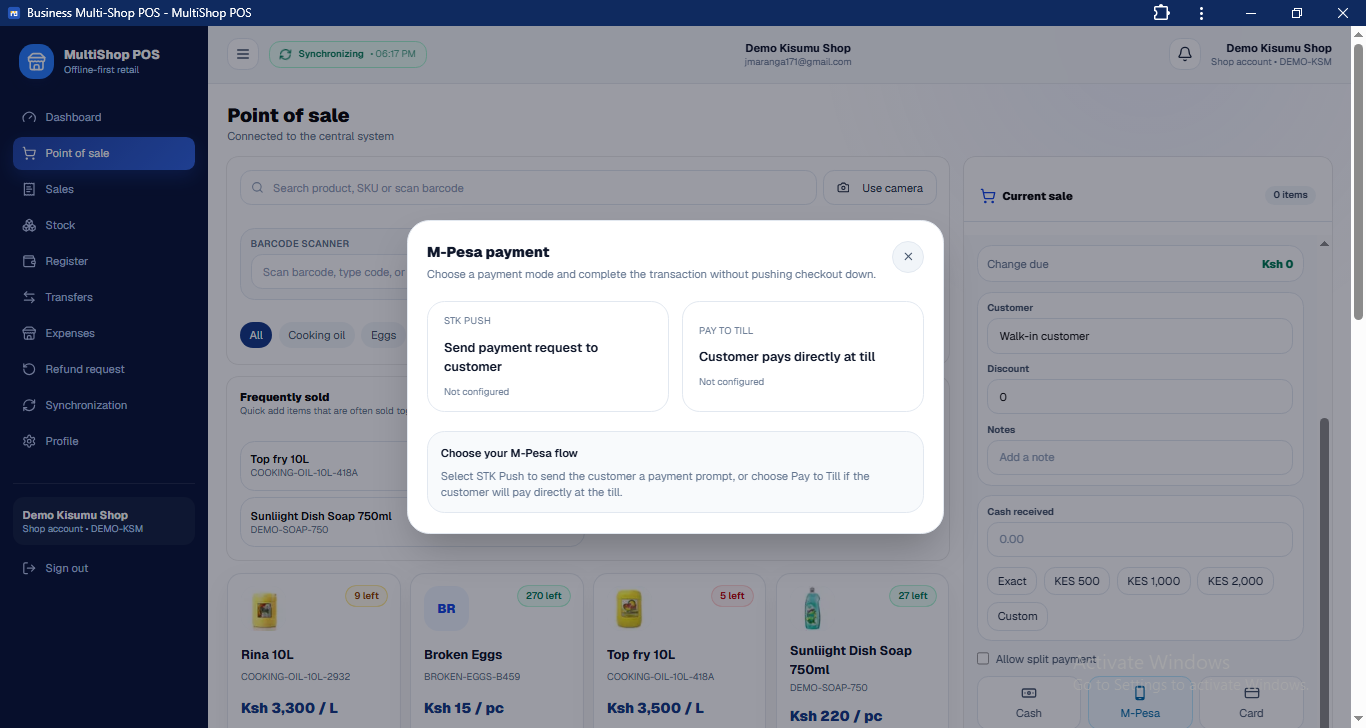
MultiShop POS provides dedicated workflows for M-Pesa payments.
A customer can pay through an STK Push, where the cashier enters the customer's phone number and initiates the payment request.
The customer receives the payment prompt on their phone and completes the transaction using their M-Pesa PIN.
The system can then receive the payment confirmation and associate it with the sale.
Manual M-Pesa payments
The system can also support a manual payment workflow for customers who pay directly through the shop's M-Pesa Till.
Instead of requiring the cashier to manually search through an external M-Pesa statement, the POS can retrieve recent payment information and assist the cashier in matching the payment against the sale.
This provides a faster way of confirming payments while maintaining a record of the transaction.
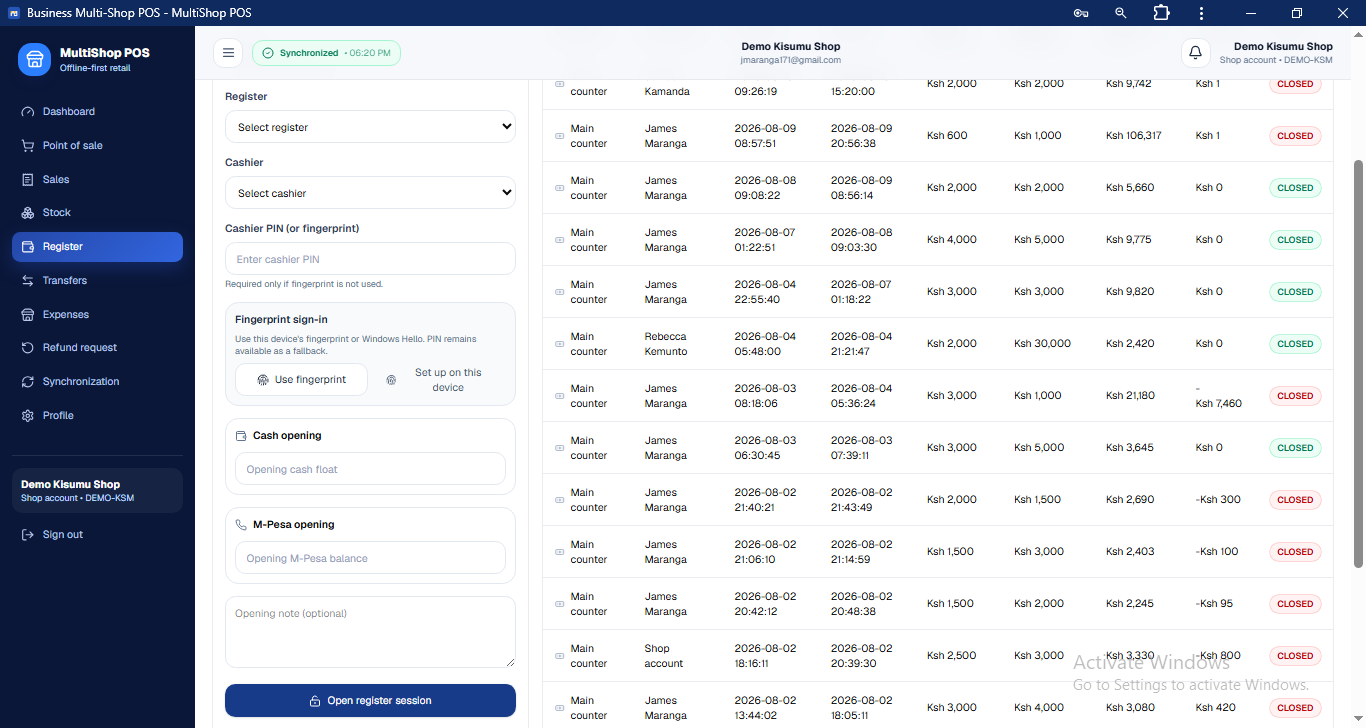
4. Opening the Cash Register
Before a cashier begins operating the POS, the register must be opened.
The cashier provides the required opening information, such as:
Assigned cashier/PIN
Opening cash
Opening M-Pesa balance
Register information
The system records the opening balance so that it can later calculate what should be available when the register is closed.
This creates a clear financial starting point for every shift.
5. Register Closing & Reconciliation
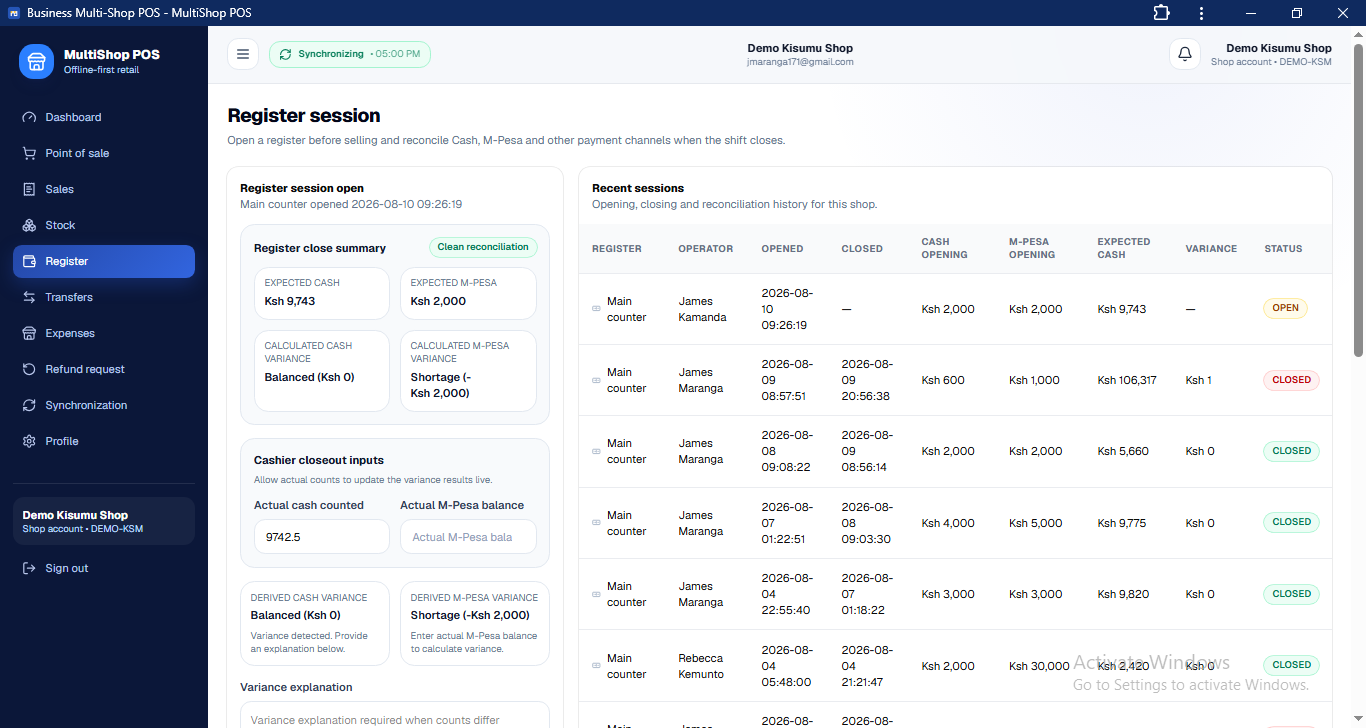
At the end of a shift or business period, the cashier closes the register.
The system calculates the expected amounts based on transactions recorded during the shift.
The cashier then enters the actual amounts counted.
The system can compare:
Expected Cash vs Actual Cash
and:
Expected M-Pesa vs Actual M-Pesa
This helps identify:
Shortages
Excess amounts
M-Pesa discrepancies
Register variances
The closing process therefore provides an accountability record for the cashier and the business.
6. Shop Inventory
The Inventory section allows shop employees to monitor the products available at their location.
Users can see information such as:
Product name
Available quantity
Selling price
Stock status
Units
Other configured product information
The system can classify inventory according to configured thresholds.
For example:
Normal → Low → Critical → Out of Stock
This allows employees to identify products that require attention.
7. Automated Stock Monitoring
MultiShop POS does more than display inventory quantities.
Products can be configured with restore/reorder thresholds.
For example:
Restore threshold: 10 crates
Current stock: 5 crates
The system recognizes that the product has reached its configured replenishment level.
This becomes particularly powerful when the product is connected to a supplier.
8. Supplier Integration
Products can be connected to specific suppliers.
For example:
Shop: Nairobi Branch
Product: Eggs
Supplier: ABC Distributors
This creates a relationship between the shop, product and supplier.
When the product reaches its configured restocking threshold, the system knows which supplier should receive the request.
This prevents suppliers from receiving unrelated stock requirements from other shops.
9. Automated Purchase Requisitions
Once a connected product reaches its configured threshold, the system can calculate how much needs to be replenished.
For example:
Required stock: 10 crates
Current stock: 5 crates
Required quantity: 5 crates
The system can generate a purchase requisition containing:
Product
Current stock
Required quantity
Unit
Shop
Supplier
Request information
The requisition can then be communicated to the appropriate supplier.
This transforms inventory monitoring from a passive warning system into an automated procurement workflow.
10. Expenses
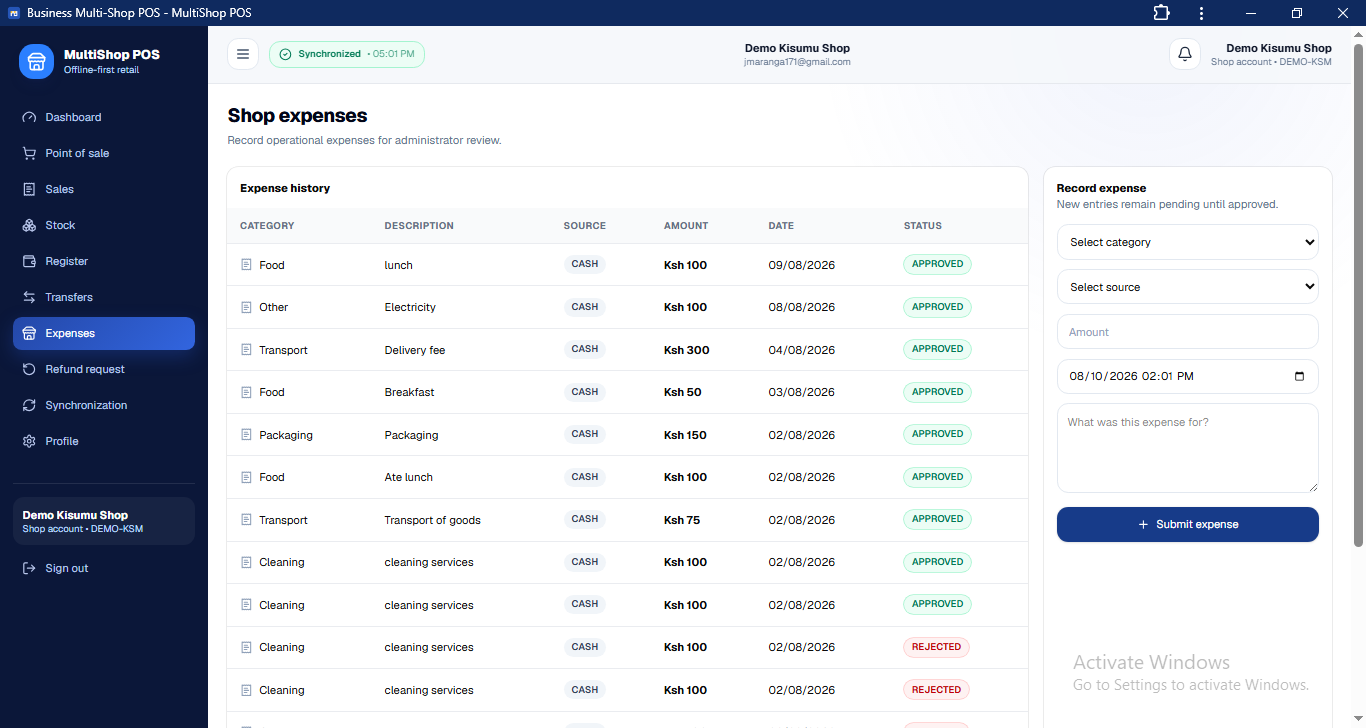
The Shop Portal also allows authorized users to record business expenses.
A shop can record expenses such as:
Transport
Repairs
Utilities
Supplies
Maintenance
Other configured expenses
The information can then be submitted for administrative review.
This allows the business owner to maintain a centralized record of expenses across different branches.
11. Refund Requests
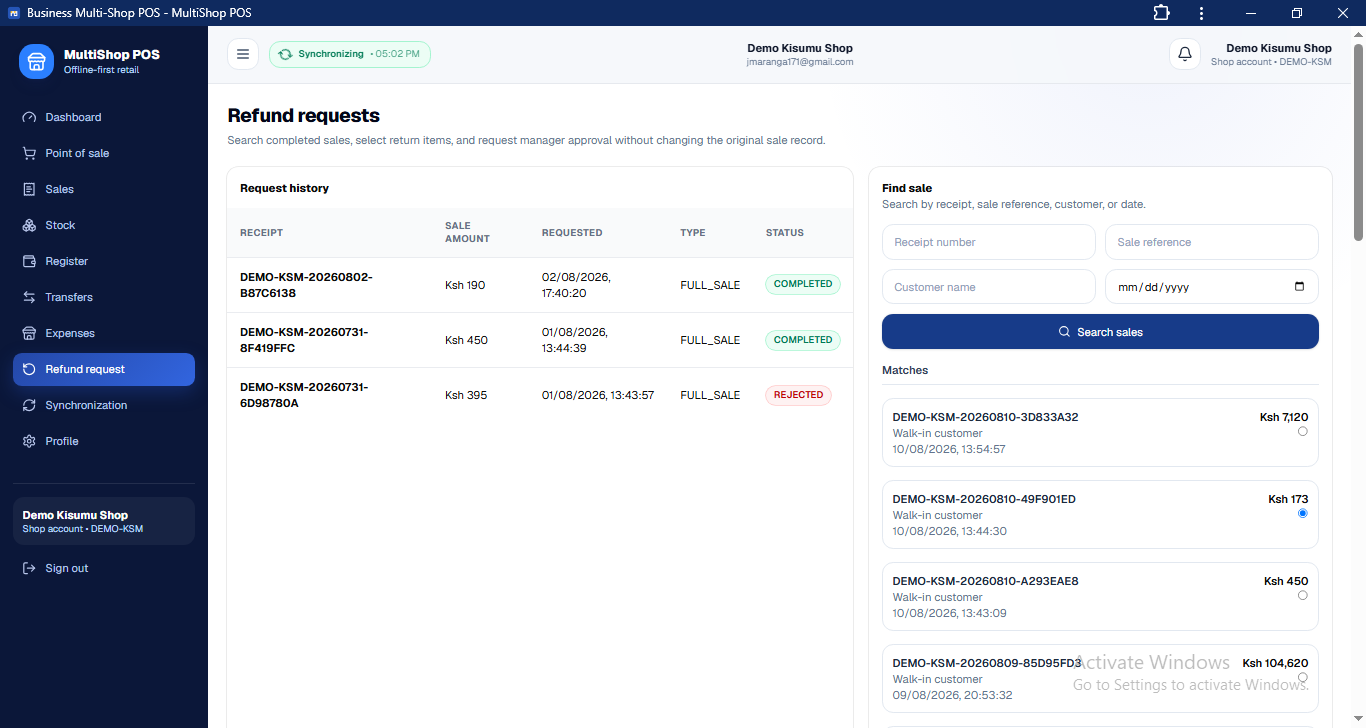
Sometimes a customer needs to return a product or request a refund.
Instead of simply deleting or modifying the original transaction, the system provides a controlled refund workflow.
The cashier can locate the relevant sale and submit a refund request.
The administrator can then review the request according to the business's configured approval process.
This maintains a better audit trail of refunds.
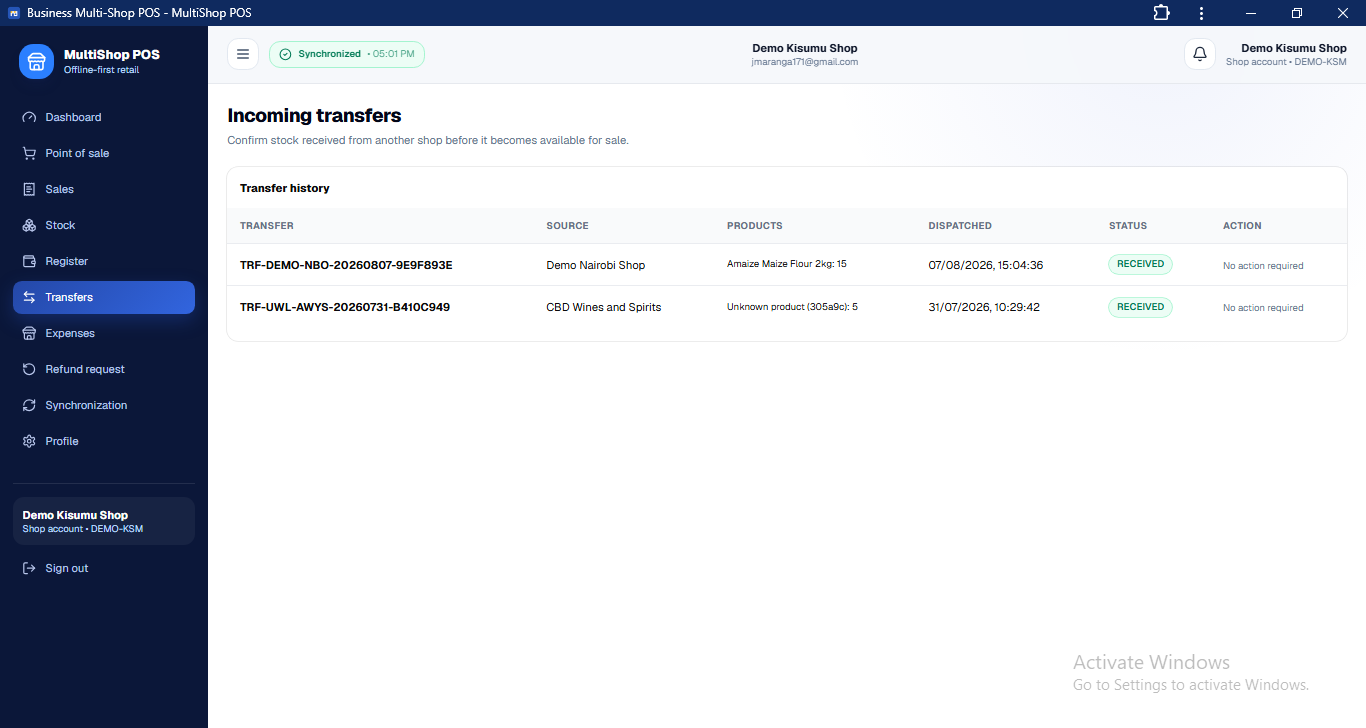
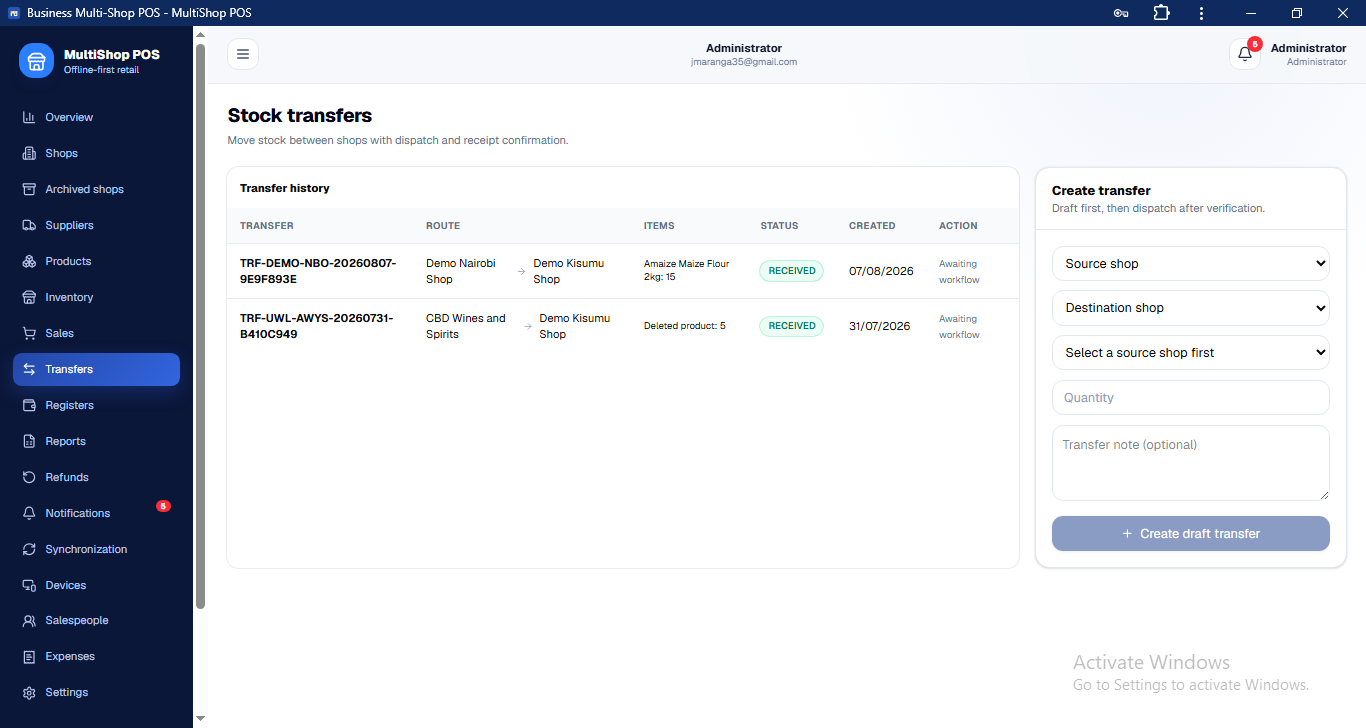
12. Stock Transfers
When a business has multiple shops, one branch may have excess stock while another needs additional stock.
MultiShop POS allows inventory to be transferred between shops.
For example:
Shop A → Shop B
The transfer records:
Sending shop
Receiving shop
Product
Quantity
Transfer status
Receiving confirmation
This provides visibility into how inventory moves throughout the business.
shop page
admin page
13. Shop Sales & Transaction History
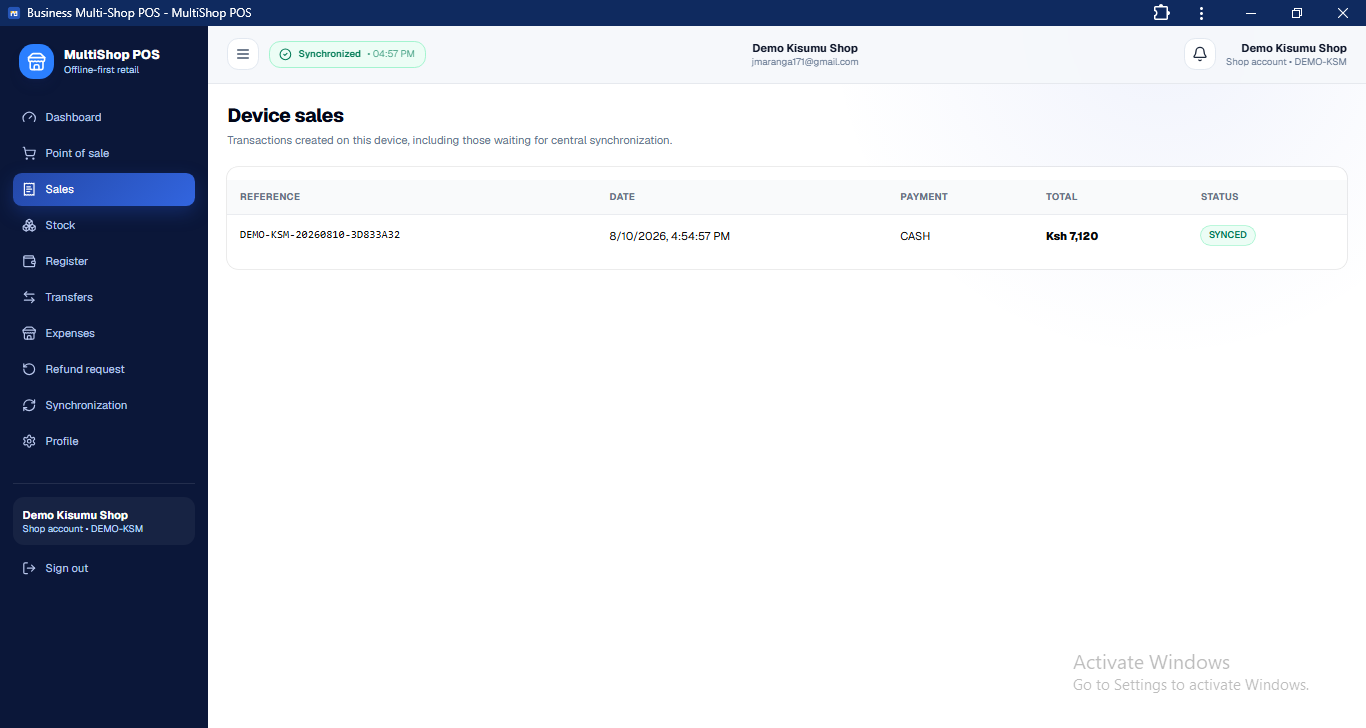
The Shop Portal provides access to the shop's sales activity.
Authorized users can review transactions and their relevant information.
This can help shop managers understand:
What was sold
When it was sold
Payment method
Transaction amount
Cashier responsible
Transaction status
The records provide an operational history for the shop.
14. Offline Synchronization
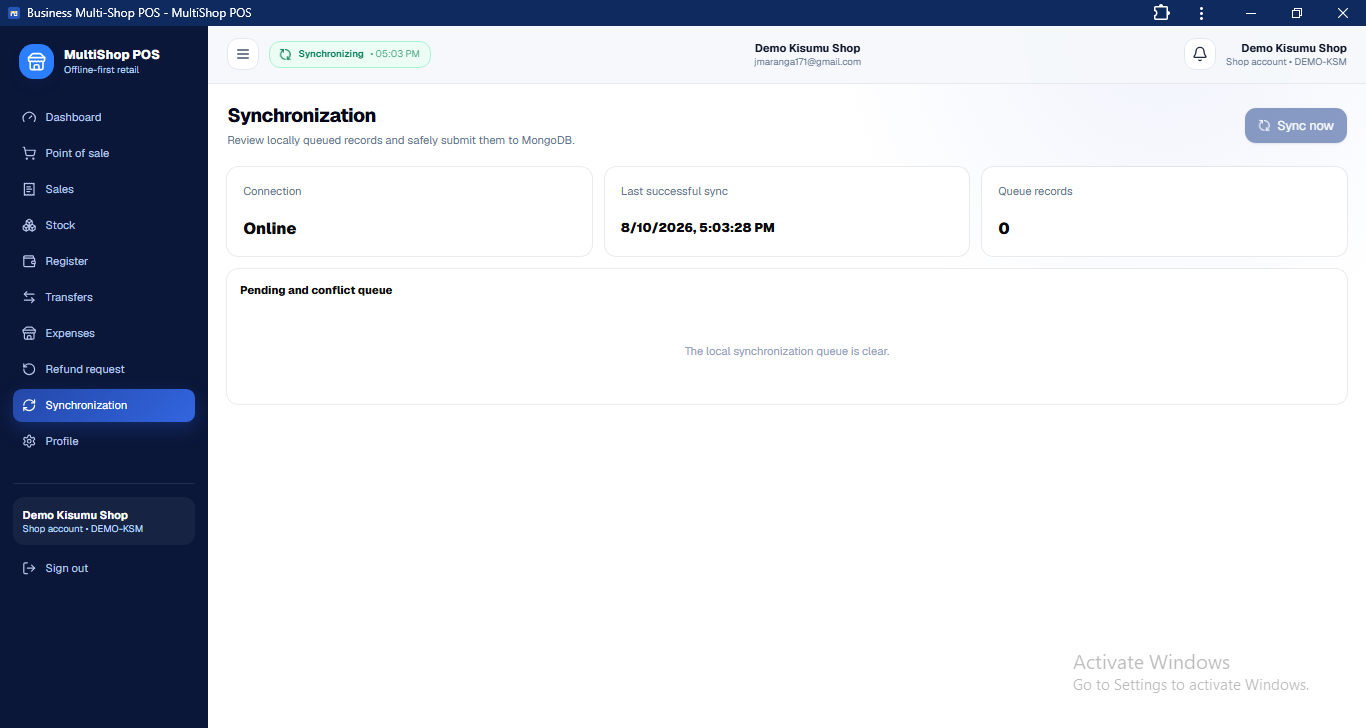
One of the major features of MultiShop POS is its ability to support offline operation.
If internet connectivity is temporarily unavailable, eligible transactions can be stored locally rather than preventing the shop from serving customers.
Once the internet connection returns:
Offline transactions → Synchronization queue → Central database
The system can display the synchronization state so users can understand whether their transactions have successfully synchronized.
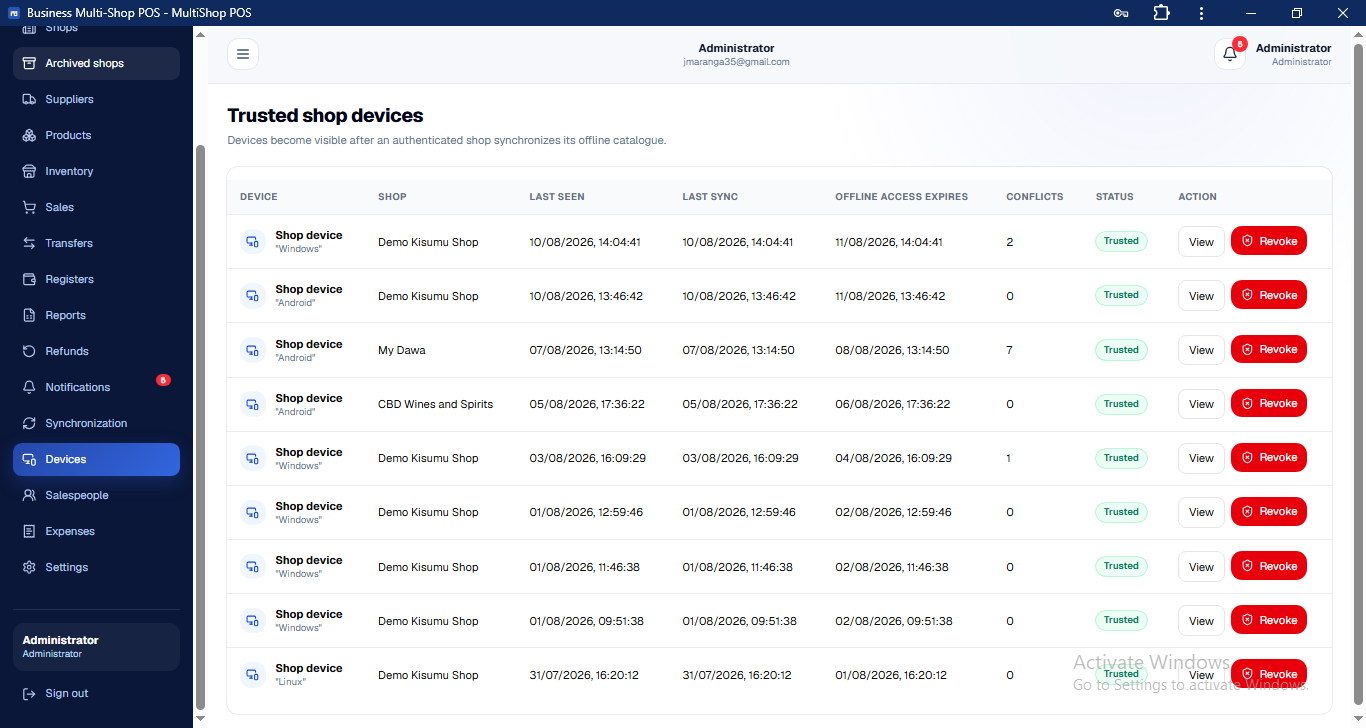
15. Device Management
Shop operations can be associated with authorized devices.
The system can maintain information about devices used to access the POS and allow administrators to control trusted devices.
This provides an additional layer of security for physical retail locations.
16. Shop Users & Access
Each shop user receives access according to their assigned role and permissions.
For example, a cashier should not necessarily have access to administrator functions such as:
Creating shops
Managing global products
Managing suppliers
Viewing unrestricted business reports
Changing system-wide settings
This role-based structure helps protect sensitive business operations.
From Daily Sales to Automated Business Management
MultiShop POS is designed to connect every important part of a retail business.
A typical workflow can look like this:
Customer makes a purchase
↓
POS records the sale
↓
Inventory is automatically updated
↓
Stock reaches the configured threshold
↓
System identifies the connected supplier
↓
Purchase requisition is generated
↓
Supplier receives the request
↓
Business owner sees the activity in the Administration Portal
↓
Weekly reports provide a broader view of business performance
This is what makes MultiShop POS more than a conventional checkout system. It connects sales, inventory, payments, procurement, employees, branches and management into one operational platform.
Administration Portal — Centralized Business Management
The Administration Portal is the central control center of MultiShop POS. While the Shop Portal is designed for daily sales and shop operations, the Administration Portal gives business owners and authorized administrators a complete view of the business and the tools required to manage multiple shops, inventory, suppliers, employees, finances, devices, and system settings.
The portal brings information from individual shops into one centralized environment, allowing management to monitor operations, identify problems, configure business rules, and make informed decisions.
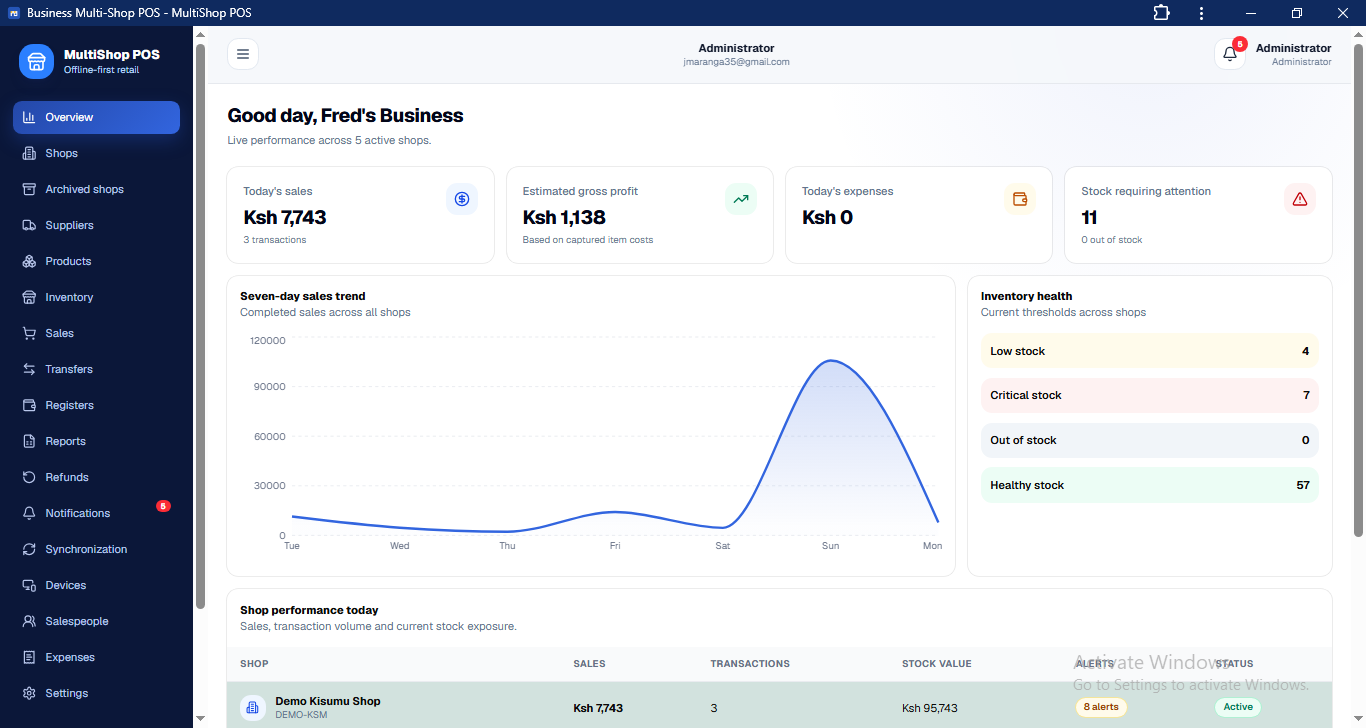
1. Administrator Dashboard
The Administrator Dashboard provides an overview of the entire business from a single screen.
Instead of checking every shop individually, the administrator can quickly understand the current state of the business.
The dashboard can provide visibility into:
Total shops
Sales performance
Inventory status
Low-stock products
Critical-stock products
Out-of-stock products
Recent transactions
Expenses
Register activity
Pending requests
Stock transfers
Supplier activities
Other important business indicators
The dashboard acts as the administrator's starting point for monitoring the business.
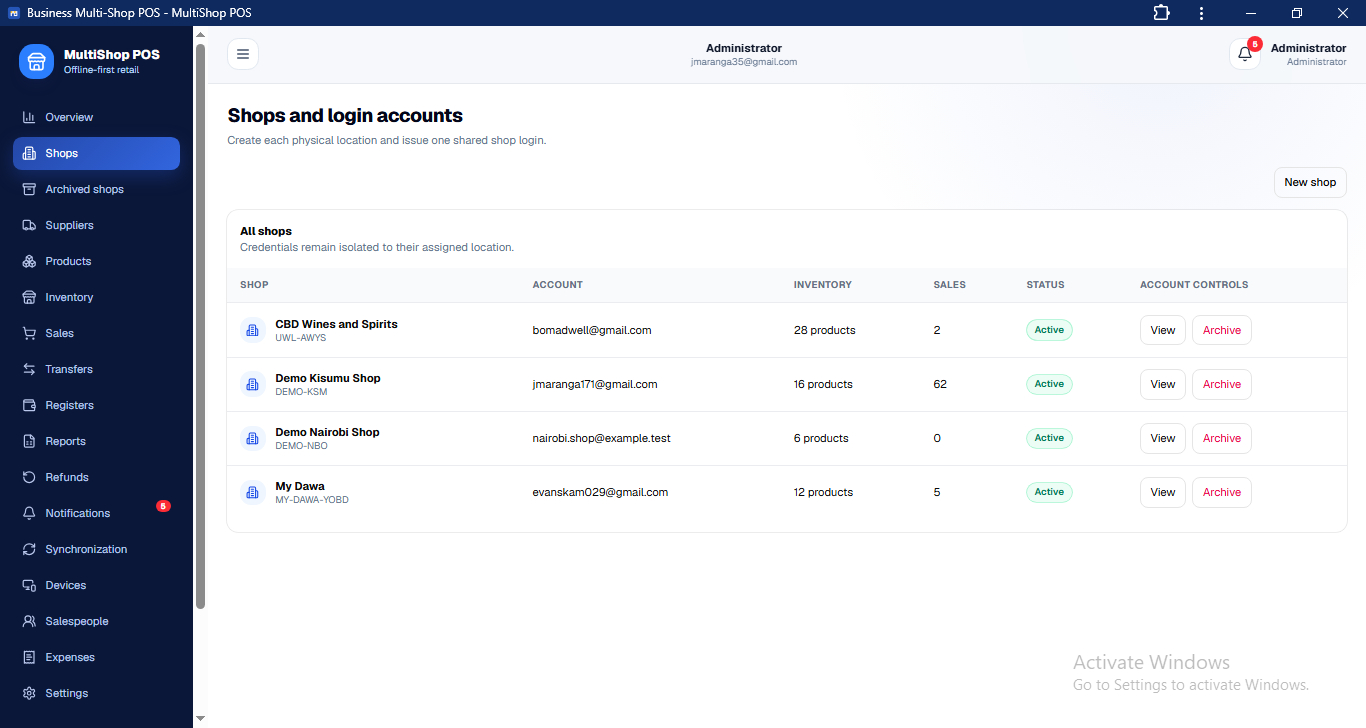
2. Shop Management
The Shop Management section allows the administrator to create and manage the different branches or outlets belonging to the business.
For each shop, the administrator can maintain information such as:
Shop name
Location
Contact information
Assigned employees
Products
Inventory
Suppliers
Registers
Devices
Shop status
This allows a business with several branches to manage them from one centralized system.
Example
A business may have:
Nairobi Branch
Mombasa Branch
Kisumu Branch
Each branch operates independently through its Shop Portal while the administrator maintains centralized control.
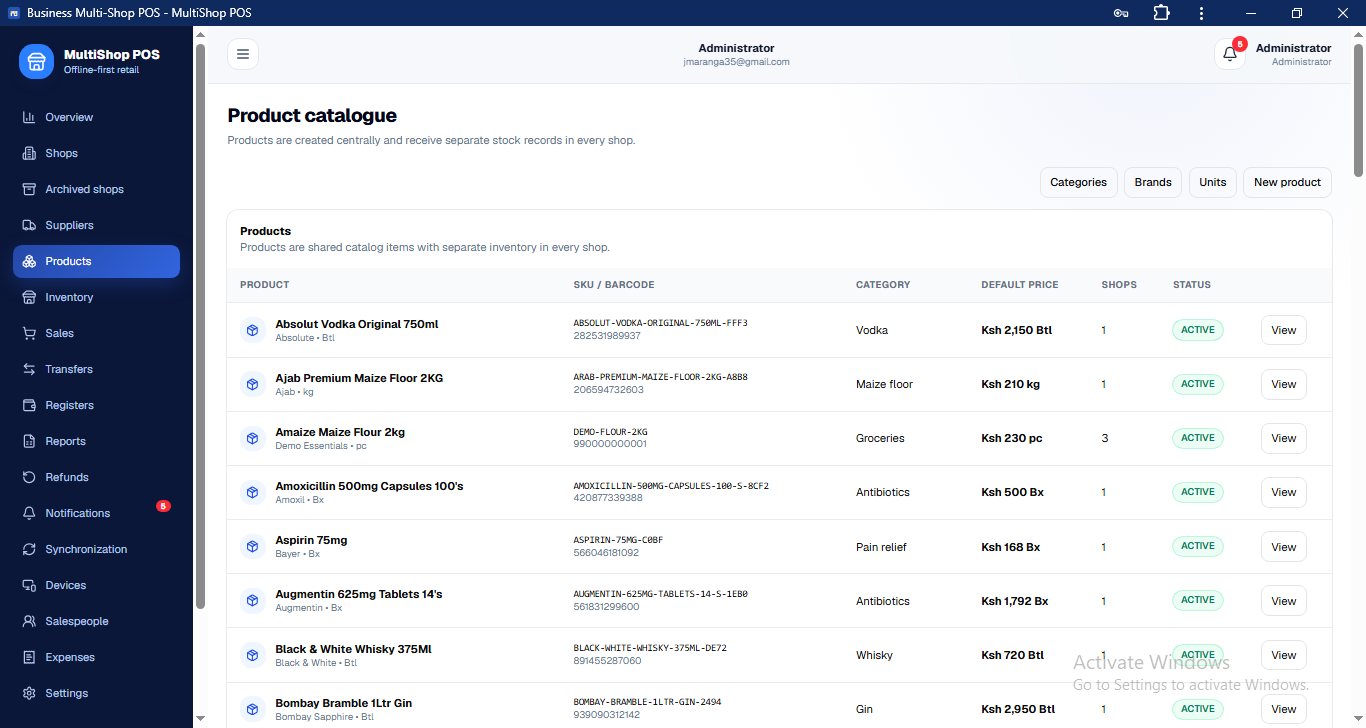
3. Product Management
The Product Management section provides centralized control over the business's product catalog.
Administrators can create and manage products with information such as:
Product name
SKU
Category
Brand
Unit
Selling price
Cost price
Stock levels
Restock threshold
Critical threshold
Supplier
Assigned shops
Products can then be made available to the appropriate shops.
This prevents administrators from having to recreate the same product information separately for every branch.
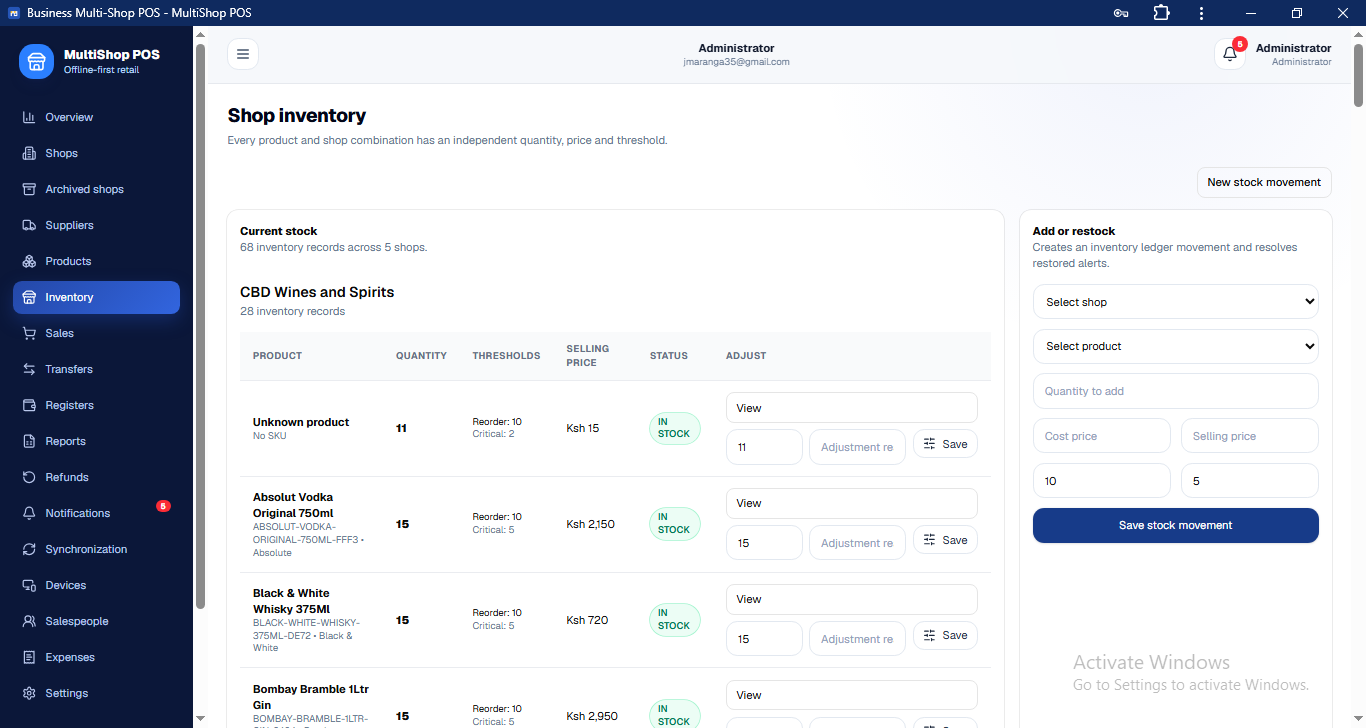
4. Inventory Management
The Inventory Management section provides a broader view of stock across the business.
Administrators can monitor inventory by shop and identify products that require attention.
Products can be grouped into statuses such as:
Normal
Stock is within the expected operating range.
Low
Stock has fallen below the configured level and may require replenishment.
Critical
Stock has reached a level requiring urgent attention.
Out of Stock
The product is no longer available at the shop.
This allows the administrator to identify inventory problems before they significantly affect sales.
5. Supplier Management
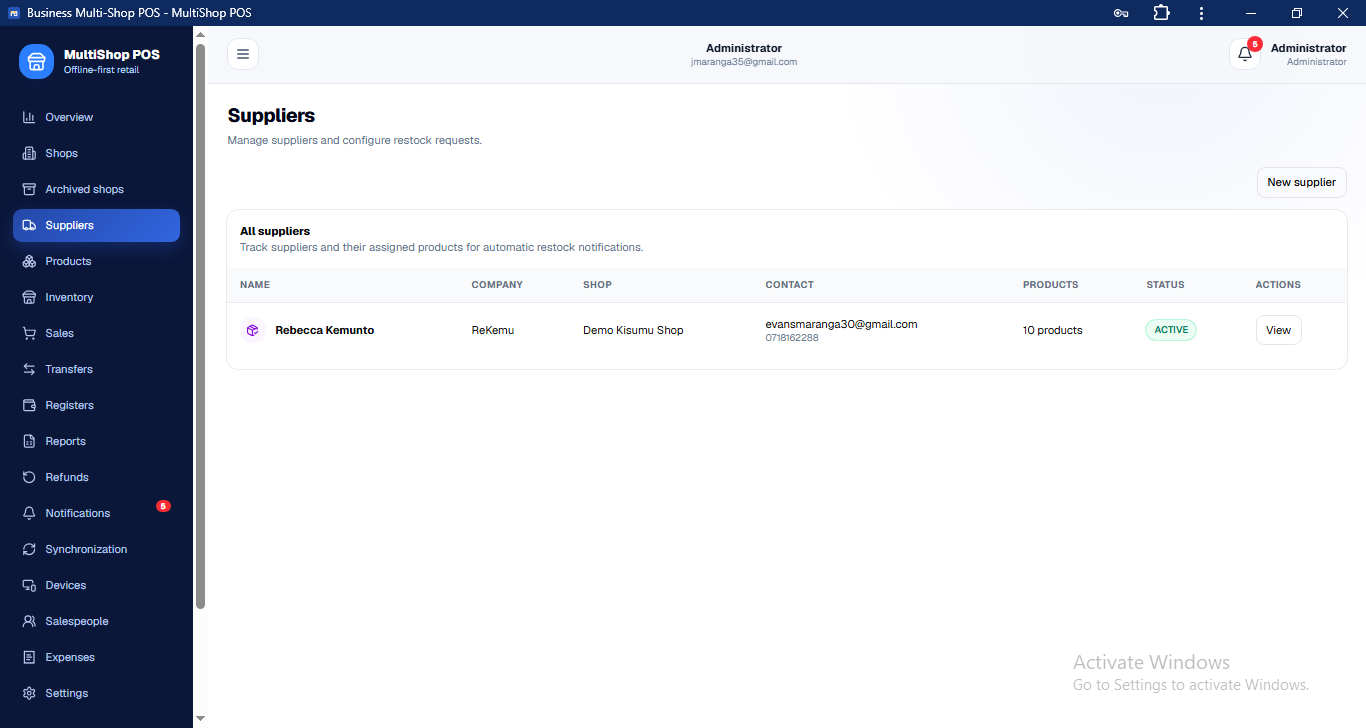
The Supplier Management section allows administrators to create and maintain supplier records.
Supplier information can include:
Supplier name
Contact person
Email
Phone number
Business information
Assigned shops
Products supplied
The administrator can associate specific products with specific suppliers.
For example:
Nairobi Shop → Eggs → ABC Suppliers
This relationship becomes important when automated stock replenishment is enabled.
6. Supplier Product Integration
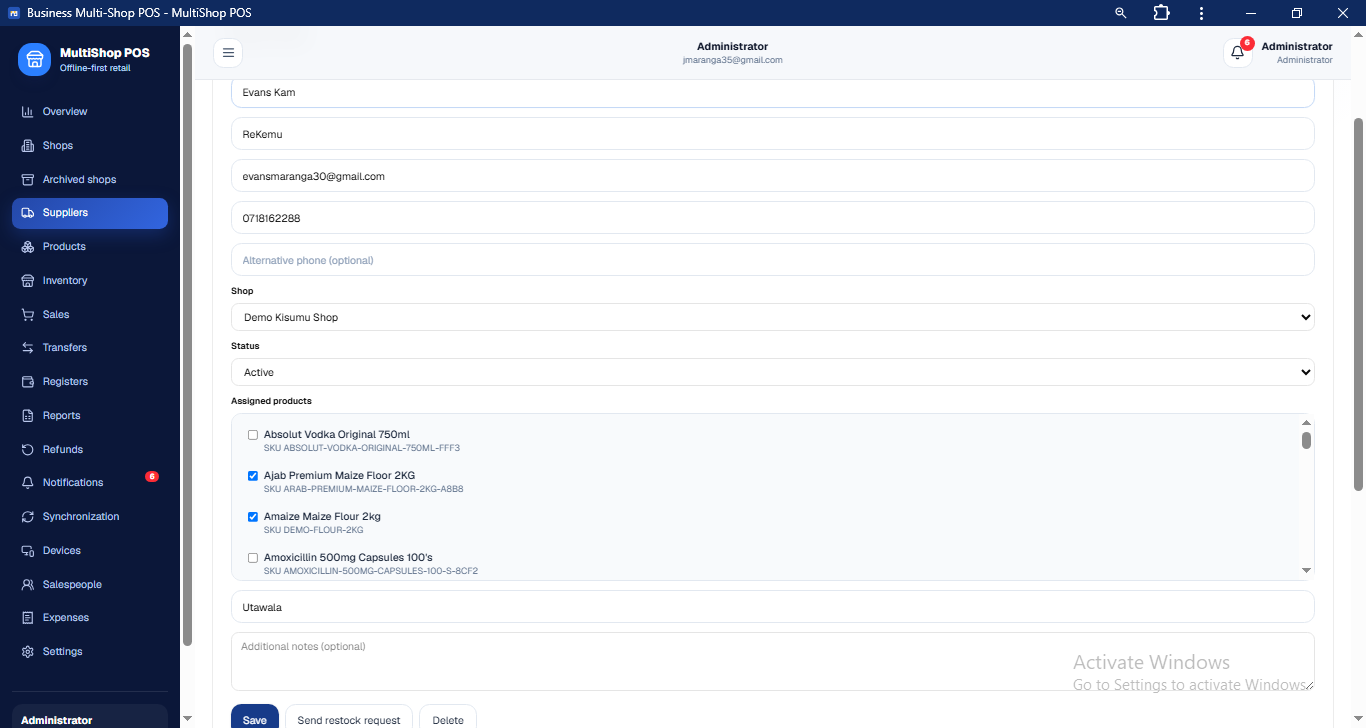
MultiShop POS allows administrators to connect products to the suppliers responsible for supplying them.
This creates a structured relationship between:
Shop + Product + Supplier
For example:
Nairobi Branch sells eggs and normally purchases them from ABC Distributors.
The administrator can configure this relationship in the system.
When the stock level reaches the configured replenishment threshold, the system knows which supplier should receive the purchase request.
This eliminates the need for employees to manually determine which supplier should be contacted.
7. Automated Purchase Requisitions
This is one of the key automation features of the Administration Portal.
The administrator configures the product's replenishment level.
For example:
Restore Threshold: 10 crates
If the shop's inventory falls to:
5 crates
the system calculates:
Required quantity = 10 − 5 = 5 crates
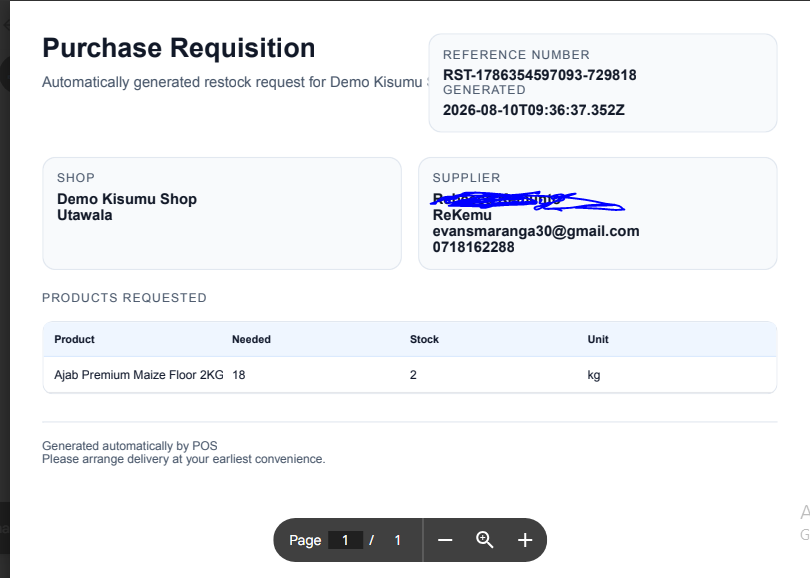
The system can then generate a purchase requisition containing:
Shop
Supplier
Product
Current stock
Required quantity
Unit
Request date
The supplier can receive the request through the configured communication method.
Example
A supplier may receive:
RESTOCK REQUEST
Nairobi Branch
ProductCurrent StockRequiredEggs5 crates5 cratesMaize Flour7 bags3 bagsSugar18 bags2 bags
This allows the business to move from simply detecting low stock to actually initiating the replenishment workflow.
8. Supplier Purchase Requests & History
Administrators can maintain a record of supplier requisitions generated by the system.
This makes it possible to review:
Which supplier was contacted
Which shop generated the request
Products requested
Quantities requested
Date of request
Request status
Previous requests
This creates an operational history of the business's procurement activities.
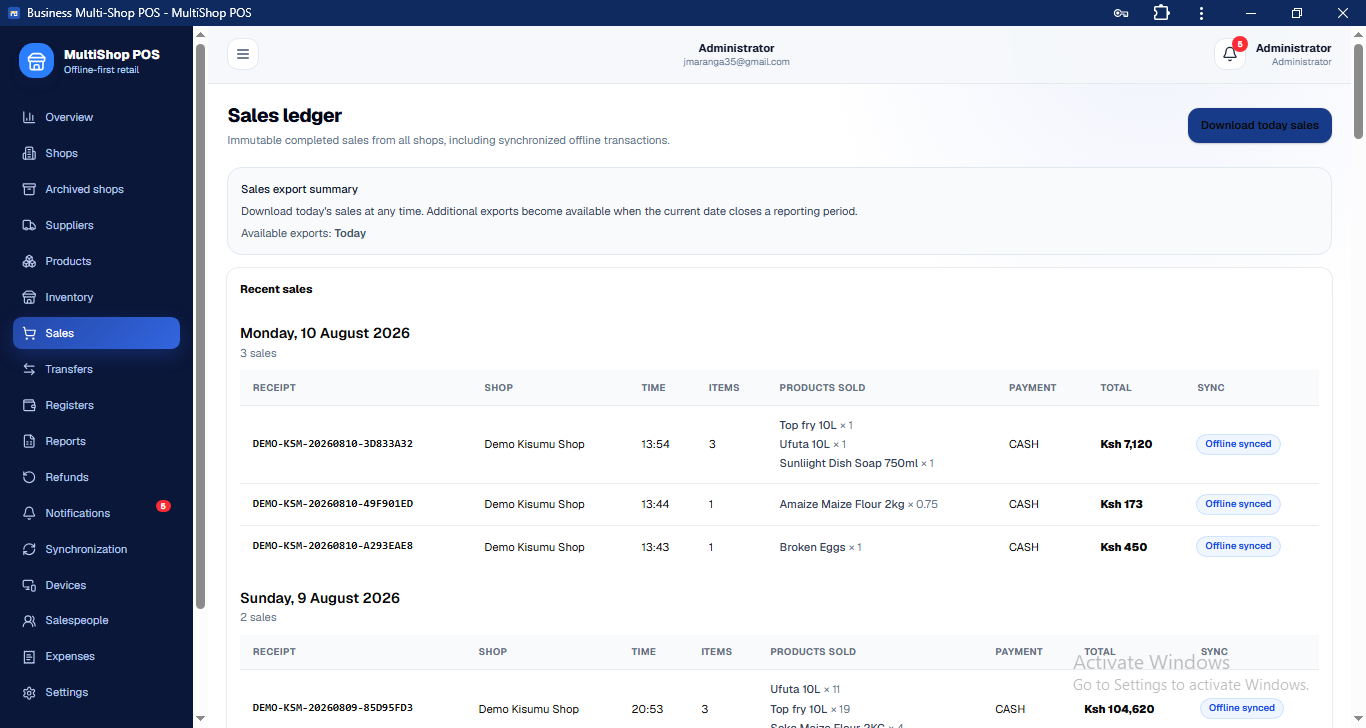
9. Sales Management
The Sales Management section provides administrators with centralized visibility into transactions from the different shops.
Administrators can review sales according to available filters such as:
Shop
Date
Cashier
Product
Payment method
Transaction status
This allows the business owner to understand what is happening across different branches without logging into each shop separately.
10. Sales Reports & Analytics
The reporting section converts transaction data into useful business information.
Administrators can analyze:
Sales performance
Shop performance
Product performance
Payment activity
Transaction volumes
Sales trends
Other configured metrics
This allows management to identify which shops and products are performing well and where attention may be required.
11. Detailed Weekly Reports
MultiShop POS can generate detailed weekly reports that consolidate important business information.
A weekly report can provide information about:
Total sales
Sales by shop
Product performance
Inventory status
Low-stock products
Critical-stock products
Out-of-stock products
Stock movements
Expenses
Register activity
Supplier requisitions
Other operational information
Instead of manually collecting information from different shops, the administrator can use a consolidated report to understand the week's business activity.
12. Register Management
Administrators can monitor register activity across the different shops.
The system maintains records associated with register opening and closing, including:
Opening balances
Expected balances
Actual balances
Cash variance
M-Pesa variance
Cashier
Shop
Opening time
Closing time
This gives the administrator a centralized view of register reconciliation.
13. Expense Management
The administrator can review expenses submitted by individual shops.
This creates a centralized process where shop employees can submit expenses and management can review them.
Administrators can see:
Expense category
Amount
Shop
Employee
Date
Payment method
Description
Approval status
Depending on the configured workflow, administrators can approve or reject submitted expenses.
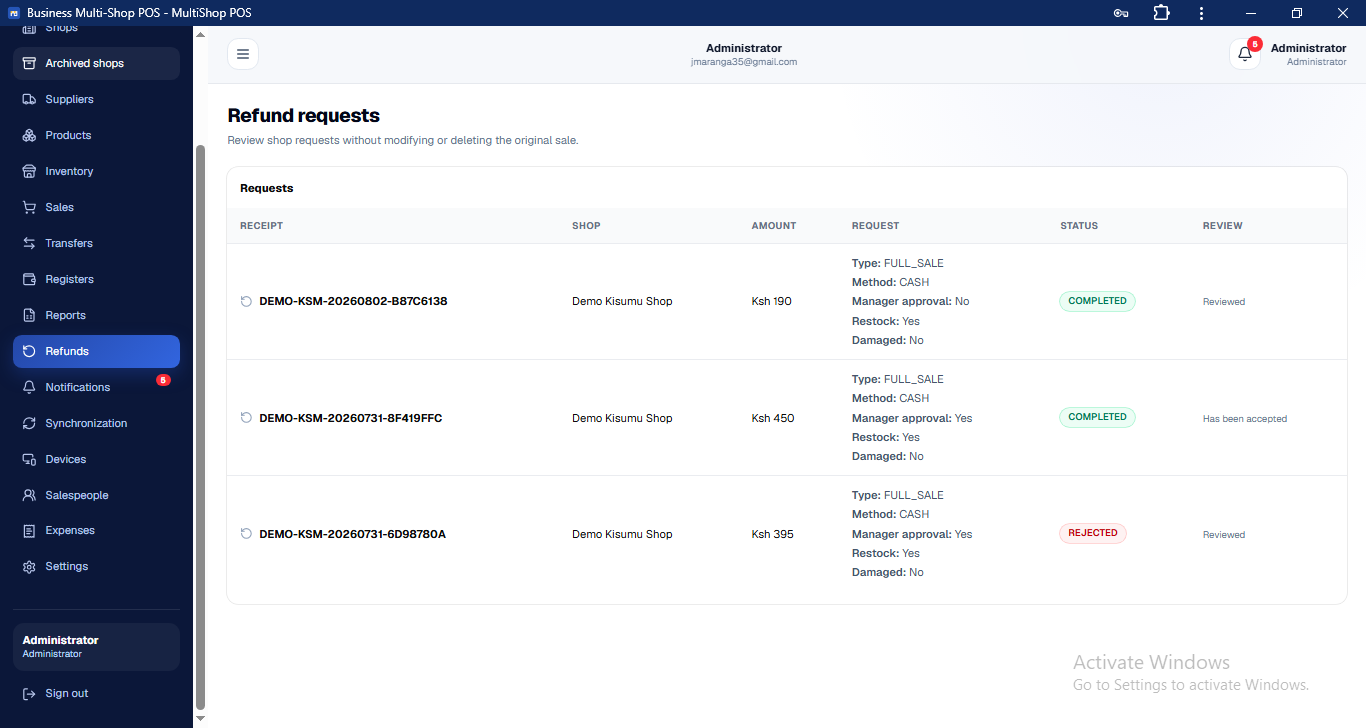
14. Refund Management
The Administration Portal provides centralized visibility into refund requests submitted by shops.
Administrators can review the original transaction and the reason for the requested refund before taking the appropriate action.
This creates better control over refunds and reduces the risk of unauthorized transaction manipulation.
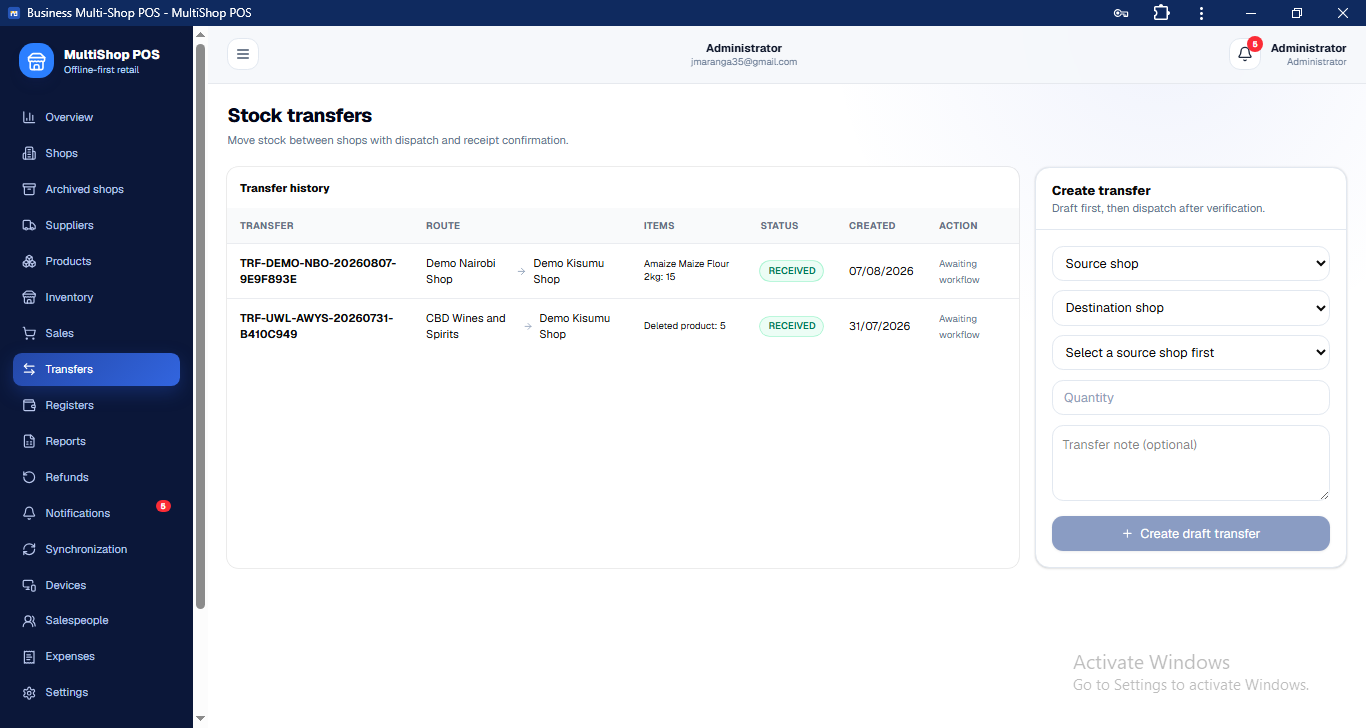
15. Stock Transfers
Administrators can monitor inventory transfers between branches.
For example:
Nairobi Branch → Mombasa Branch
The system can record:
Sending shop
Receiving shop
Products
Quantities
Transfer status
Date
Receiving confirmation
This gives management a clear history of inventory movement across the business.
16. Salesperson Management
The Salesperson Management section allows administrators to manage employees who operate the POS.
Administrators can:
Create salesperson accounts
Assign employees to shops
Manage their information
Control their access
Monitor their activities
This helps businesses maintain accountability and ensure employees operate within their assigned locations and responsibilities.
17. User Roles & Permissions
The Administration Portal controls access to the system through role-based permissions.
Different users can receive different levels of access depending on their responsibilities.
For example:
Administrator
Full business management access.
Shop Manager
Access to operational functions within an assigned shop.
Cashier
Access primarily focused on sales and register operations.
This prevents users from accessing functions that are outside their responsibilities.
18. Trusted Device Management
The administrator can manage devices that are authorized to access the POS.
The system can maintain information about:
Device
Shop
Status
Authorization
Access history where implemented
Administrators can revoke or manage trusted devices when necessary.
This is particularly useful for businesses where POS terminals are permanently located at specific shop counters.
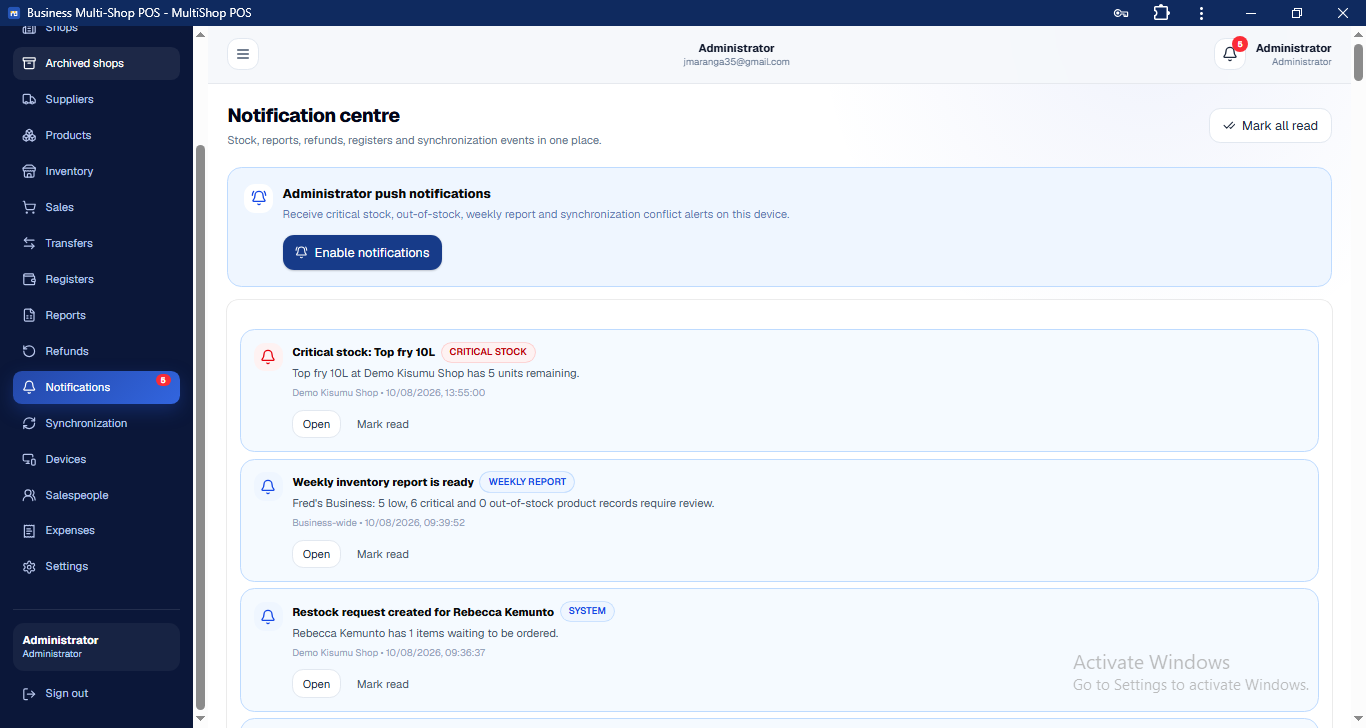
19. Notifications
The Administration Portal can provide centralized notifications for important business events.
Examples include:
Low stock
Critical stock
Out-of-stock products
Supplier purchase requests
Expense submissions
Refund requests
Stock transfers
Synchronization issues
Reports
Other configured events
This helps administrators focus on issues requiring attention rather than manually checking every section.
20. Synchronization Monitoring
Because the POS supports offline operation, the Administration Portal can also provide visibility into synchronization activity.
Administrators can monitor information such as:
Pending synchronization
Successfully synchronized records
Failed synchronization
Conflicting records
Last synchronization activity
This helps identify shops or devices that may have synchronization problems.
21. Business Settings
The Business Settings section allows administrators to configure how the system operates.
Depending on the enabled functionality, settings may include:
Business information
Currency
Timezone
Stock thresholds
Critical stock levels
Offline session settings
Synchronization settings
Reporting schedules
Expense categories
Other business rules
This allows MultiShop POS to adapt to different business requirements.
22. Centralized Business Visibility
The biggest advantage of the Administration Portal is that it brings the entire business together.
Instead of having:
Shop 1 → Separate records
Shop 2 → Separate records
Shop 3 → Separate records
MultiShop POS provides:
                    ADMINISTRATION
                         PORTAL
                            │
          ┌─────────────────┼─────────────────┐
          │                 │                 │
        SHOP 1             SHOP 2            SHOP 3
          │                 │                 │
       Sales              Sales             Sales
       Stock              Stock             Stock
       Registers          Registers         Registers
       Expenses           Expenses          Expenses
       Staff              Staff             Staff
          │                 │                 │
          └─────────────────┼─────────────────┘
                            │
                     CENTRAL SYSTEM
                            │
          ┌─────────────────┼─────────────────┐
          │                 │                 │
      Suppliers         Inventory         Reporting
          │                 │                 │
          └─────────────────┼─────────────────┘
                            │
                     BUSINESS INSIGHTS
The administrator can therefore manage the business from a single centralized environment while each shop continues handling its daily operations independently.
23. From Sales to Automated Procurement
The Administration Portal becomes particularly powerful when the different modules work together.
For example:
Customer purchases 5 crates of eggs
↓
POS records the sale
↓
Shop inventory decreases
↓
Stock reaches the configured threshold
↓
System identifies the assigned supplier
↓
Required quantity is calculated
↓
Purchase requisition is generated
↓
Supplier receives the request
↓
Administrator can monitor the request
↓
Stock is replenished
↓
Business reports reflect the activity
This creates a connected workflow from customer transaction → inventory → supplier → procurement → management reporting.
Conclusion
The MultiShop POS Administration Portal is designed to give business owners centralized control without taking away the independence of individual shops.
From managing branches and products to monitoring sales, controlling inventory, reconciling registers, managing employees, connecting suppliers and automating purchase requisitions, the administration portal brings the major operational components of a retail business into one system.
Combined with the Shop Portal, MultiShop POS creates a complete workflow:
Shop Operations → Centralized Management → Inventory Intelligence → Supplier Automation → Business Reporting
The result is a POS system that doesn't just record what a business has sold—it helps the business understand what is happening, identify what needs attention, and automate repetitive operational processes.
Related Articles

Building Modern Web Applications with Next.js and MongoDB
IntroductionModern web development has evolved significantly over the past decade. Businesses today require applications that are fast, scalable, secure, and ca